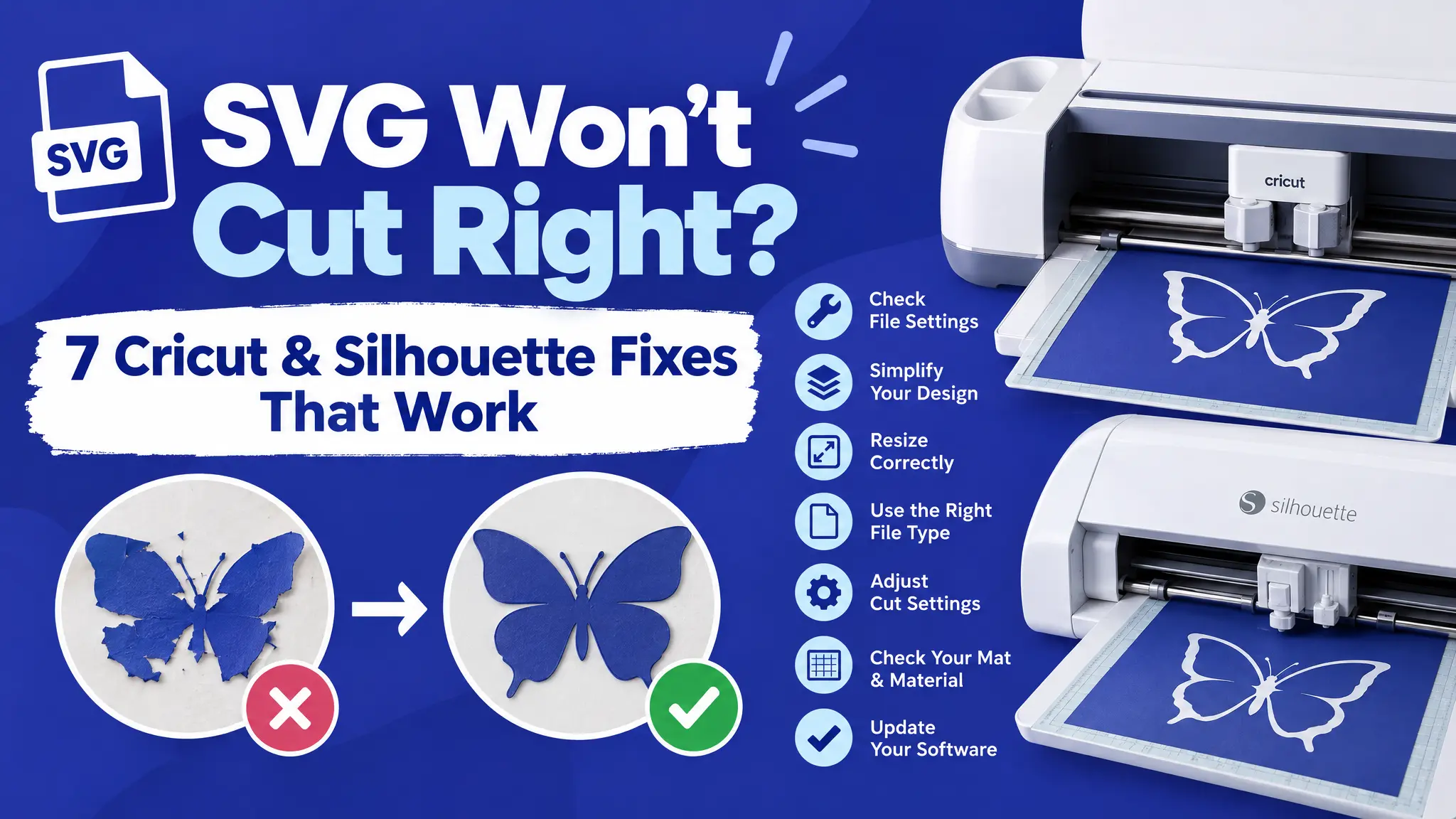
Your design looks perfect on screen, and then the cut comes out torn, incomplete or completely wrong. Frustrating! The good news: if you have an SVG not cutting right, the file is rarely the problem. Most of the time, one setting doesn’t match what’s actually on the mat.
Work through these seven fixes roughly in order. The first two solve most cases.
Before you start: a quick checklist
- ☐ Is the material setting the one you’re actually cutting?
- ☐ Is the blade clean and not worn out?
- ☐ Is the mat still sticky?
- ☐ Is the design size big enough for the details?
- ☐ Is mirror on or off as needed?
If all five are fine, go through the fixes below.
1. Jagged or torn edges instead of clean cuts
This is almost always a blade depth or pressure mismatch, not a bad file.
How to fix it:
- Check that the material setting matches your actual vinyl or card stock, not the last material you used.
- Try “More” or “Less” pressure in Design Space, or adjust the blade depth and force in Silhouette Studio.
- Clean the blade. Bits of vinyl and paper build up on the tip.
- Replace the blade. A dull blade tears instead of slicing, especially on detailed curves.
- Do a small test cut (a simple star or circle) before every big project.
2. Fine details aren’t cutting at all
Very thin lines and tiny text can be smaller than what your blade and material can physically cut.
How to fix it:
- Make the design bigger. Details that fail at 5 cm often cut perfectly at 10 cm.
- Thicken thin lines in your design software before cutting. In Design Space, the Offset tool can help. In Inkscape or Illustrator, add a stroke to the shapes.
- Choose a design made for cutting. Bold, simple shapes like silhouettes cut more reliably than detailed sketches.
- Use a fine-point or deep-point blade that suits your material.
Styles matter here. See Flat Design vs Line Art vs Silhouette to pick designs that cut well.
3. The design cuts as one solid blob
This usually means overlapping paths in the file weren’t welded or separated correctly.
How to fix it:
- Open the Layers panel and look for duplicate paths sitting on top of each other. Delete the duplicates.
- Weld overlapping shapes that should be one piece (for example, script lettering).
- Ungroup or Contour to hide shapes you don’t want to cut.
- Check that the layer is set to Cut, not Print Then Cut or Draw.
Did you upload a PNG? Design Space traces PNGs, and the result is often a single blob. Using an SVG avoids this. Here’s why: SVG vs PNG.
4. Registration marks aren’t detected (Print Then Cut)
How to fix it:
- Set your printer’s scaling to 100% / “Actual size.” Drivers that auto-shrink to fit the page move the registration marks just enough that the machine can’t find them.
- Use white, matte paper. Dark, glossy or textured paper makes the marks hard for the sensor to read.
- Use a light-colored mat.
- Avoid bright light shining directly on the machine, which can confuse the sensor.
- Turn off “bleed” if your design doesn’t need it.
5. The mat won’t grip, and the material shifts mid-cut
This is a mat problem more often than a machine problem.
How to fix it:
- Clean the mat with a lint roller or gentle soapy water (check your mat’s instructions).
- Re-tack it with a repositionable spray adhesive, or replace it.
- Use the right grip: light grip for paper, standard grip for vinyl and card stock, strong grip for thick materials.
- Smooth the material down with a scraper or brayer before loading.
Pressing harder on an old, worn-out mat rarely helps for long.
6. The blade skips sections partway through a cut
How to fix it:
- Slow down the cut speed, especially on detailed designs. Most machines default to a speed tuned for simple shapes, and dense detail can outrun that setting.
- Check that the blade housing is fully locked in place.
- Make sure nothing is blocking the rollers or the path of the mat.
- Update your machine’s firmware and the software.
7. The finished cut is mirrored or rotated
How to fix it:
- Iron-on (HTV) needs mirror ON. Adhesive vinyl needs mirror OFF.
- The mirror setting doesn’t reset itself between projects on every machine. Check it every time.
- If the design is rotated on the mat, check the placement in the mat preview screen and move it before cutting.
SVG still not cutting right? Try a test file
If a design still won’t cut cleanly after all of the above, cut a different, simpler file on the same material with the same settings.
- If the test cuts fine: the problem is in that file’s construction. Re-download it, or simplify it (remove tiny details, weld overlapping shapes).
- If the test fails too: the problem is your settings, blade or mat. Go back to fixes 1, 5 and 6.
Prevent problems before they happen
- Label your mats and blades by material.
- Keep a notebook of settings that worked for each material.
- Store vinyl flat or rolled, away from heat.
- Always do a test cut on new materials.
Planning a multi-color project? Read how to layer SVG files for multi-color vinyl. For seasonal practice projects, try our snowflake Cricut projects.
Designs that cut cleanly
These collections have bold, clean shapes that are ideal for cutting machines:
- Santa Silhouette 01
- Tribal Butterflies 01
- Simple Stars Collection
- Head Styling Silhouette
- Snowflakes Set 01
FAQ: SVG not cutting right
Why does my SVG look fine on screen but cut badly? The screen shows the shape, not how thick or small the details are in real life. Check the size and line thickness at your final cut size.
How often should I change my blade? It depends on how much you cut. Replace it when cuts start tearing even with the right settings and a clean blade.
Do these fixes work for Silhouette machines too? Yes. The setting names differ slightly, but blade force, speed, mat grip and mirroring work the same way.
Can a bad SVG file cause cutting problems? Sometimes, for example if it has duplicate paths or open lines. That’s why fix #3 and the test file step are worth doing.
Happy cutting
Most cutting problems have simple fixes. Once you know what to check, you’ll spend less time peeling ruined vinyl and more time making things. Need clean designs to cut? Browse all our collections.